📖 Cookbook
Your family’s recipes, in one place. Add them from a website or a photo, put them on the calendar, and cook from your phone.
Meals → Cookbook
Adding a Recipe
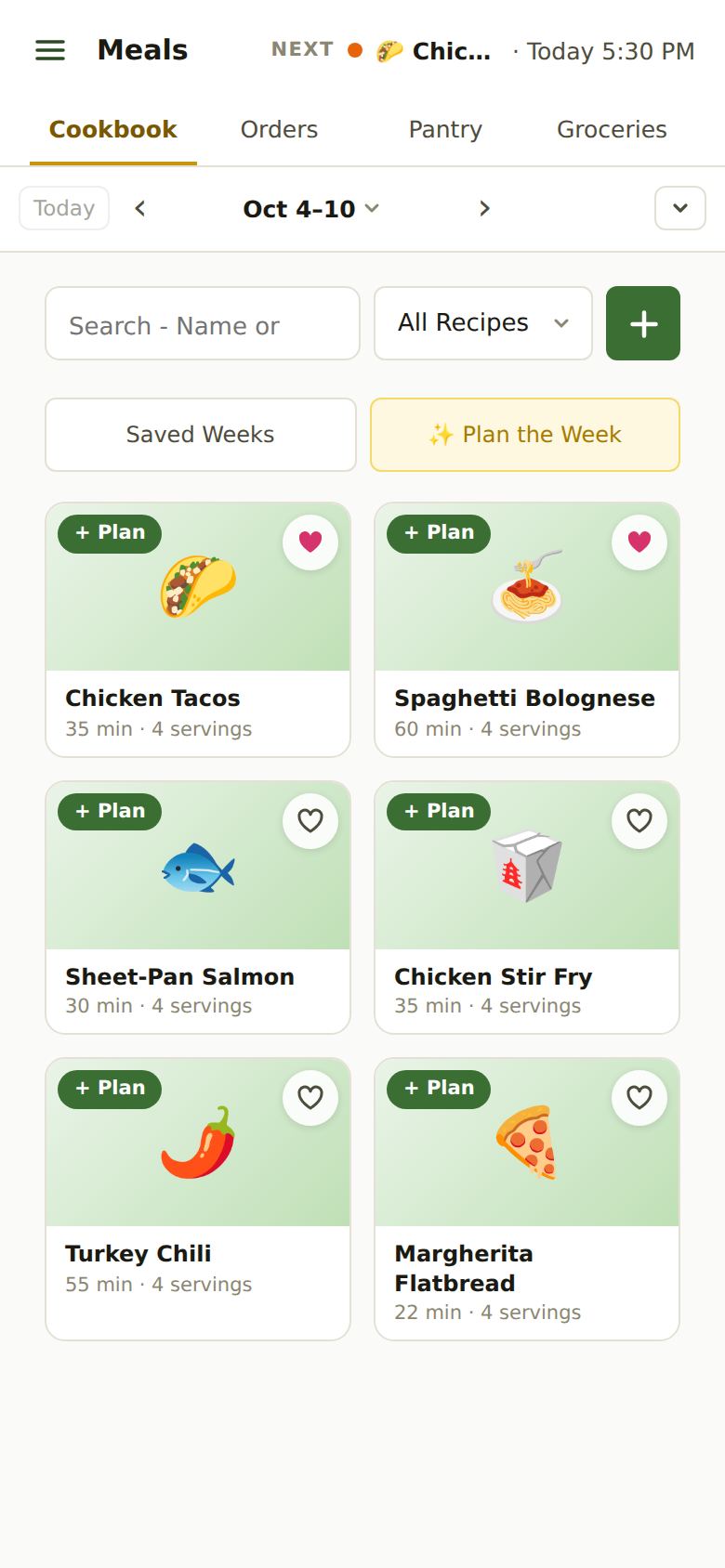
Tap the green + next to the search box. There are four ways in:
- Paste a Link: copy the address of a recipe page and paste it. Most recipe sites and blogs work. We keep the recipe and skip the life story.
- An Instagram or Facebook post or reel: share it to AprèsSchool, or paste its link. When the post links to the creator’s recipe page, we read that page (free). When the recipe is written in the post itself, we read it there (one of Premium’s Recipes, Receipts & Events). And when it says to comment for the recipe, or that it’s linked in their profile, we tell you what to do. A recipe that’s only in the video? Add screenshots instead.
- Photo or Scan: a page from a cookbook, a printout or a handwritten card. A recipe that runs over several screenshots? Pick them all at once (up to 5, in order) and they’re read together. If a photo is blurry or cut off, we’ll ask you to retake it. Each recipe read from photos is one of your family’s Recipes, Receipts & Events, however many photos; links to recipe pages and pasted text are free.
- Paste Text: a recipe someone texted or emailed you.
- A lot at once: tap Import Many at Once. Paste a list of links (on an iPhone, Safari can copy a whole bookmarks folder: press and hold it, then Copy Contents), choose a bookmarks file exported from Safari or Chrome, or pick an Excel or CSV file. Each link says how it went, then Add saves the new ones together.
- Type It In: write it yourself. Put each ingredient on its own line. A line ending in a colon (“For the sauce:”) becomes a heading.
Every way shows you the recipe to check before it’s saved. Reading a recipe is free.
On iPhone: on a recipe page in Safari, tap Share, then AprèsSchool. It lands in the Cookbook without copying anything.
Finding a Recipe
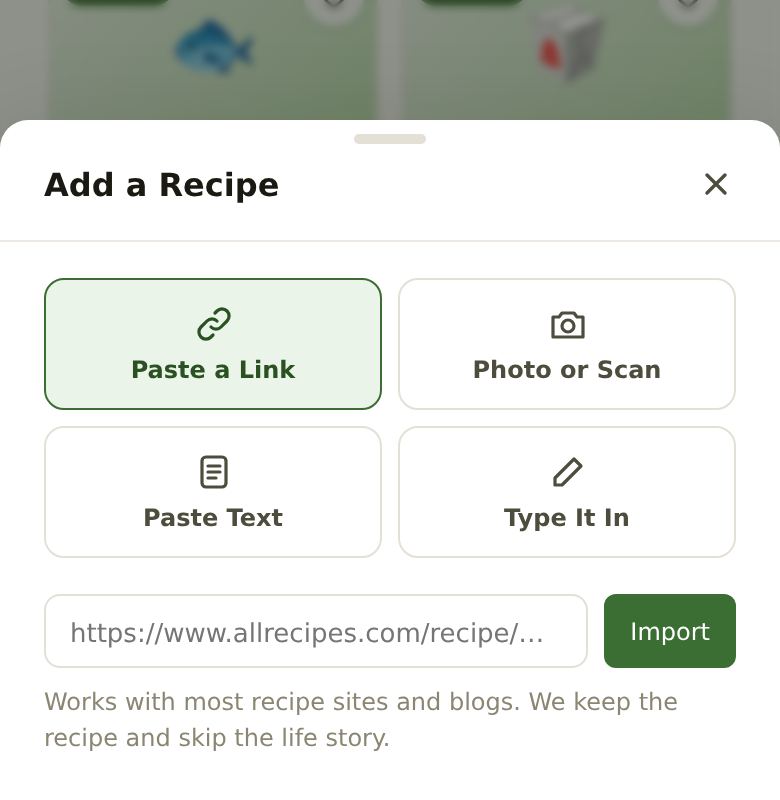
Search by name or ingredient. The All Recipes menu narrows the list to your ♥ Favorites or to one cuisine (Italian, Mexican…). AprèsSchool guesses each recipe’s cuisine; you can change it when you edit the recipe.
The Recipe Card
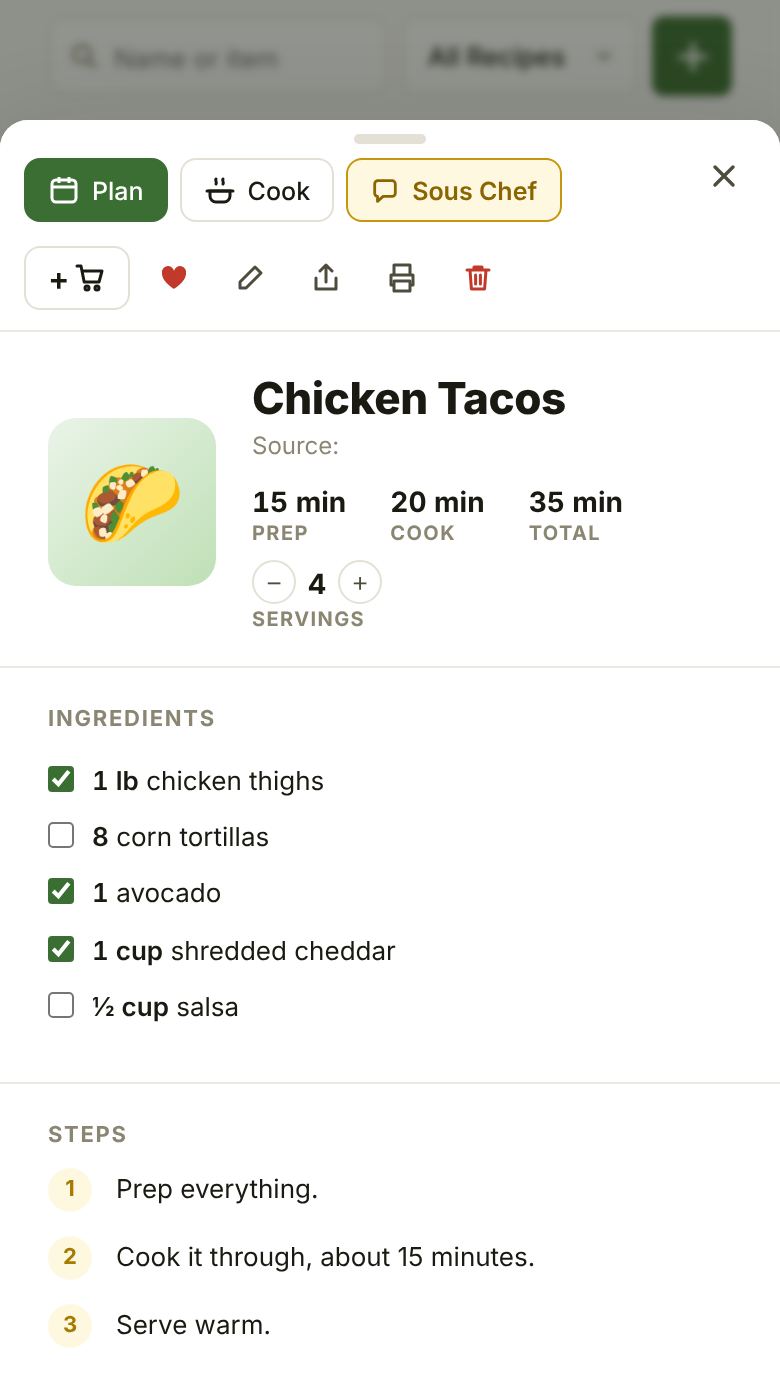
Tap a recipe to open its card. Across the top: Plan (put it on the calendar), Cook (step by step) and, with Premium, Sous Chef (ask about swaps while you cook; in the iPhone app, tap 🎤 beside the question box to ask out loud. Under an answer, a button can start a timer, put something on the grocery list, or mark something in your pantry used up). Below them: +🛒 (what it needs that isn’t in your pantry goes on the grocery list, with Undo; Add to List on a computer), ♥ favorite, edit, share, print and delete.
- Servings: − and + change the amounts for more or fewer people.
- The tick boxes check your pantry. Green means you have it. Yellow means you have some but not enough, with what’s missing on the right. Empty means you’re out.
- Tap a box to tell AprèsSchool what you really have: tick an empty one if you’ve got it, untick a green one if you’ve run out (it goes on the grocery list).
- A recipe says New until you’ve made it once.
Planning Dinner
Put a recipe on the calendar any of these ways:
- Tap + Plan on its card, then tap the day on the calendar.
- On a phone, press and hold a recipe and slide it onto a day: it lands where you let go, and sticks to your dinner time when you’re close to it. While you hold it, swipe the calendar sideways with another finger to change the week, or up and down to see other hours. On a computer, drag it.
- Open the recipe and tap Plan.
Dinner lands so it’s ready at your family’s dinner time (Account → Settings → Meals → Dinner Time), and goes later only when the cook is busy or a child is still out. Each dinner gets a cook: a parent who’s free that evening, or whoever you pick on its card.
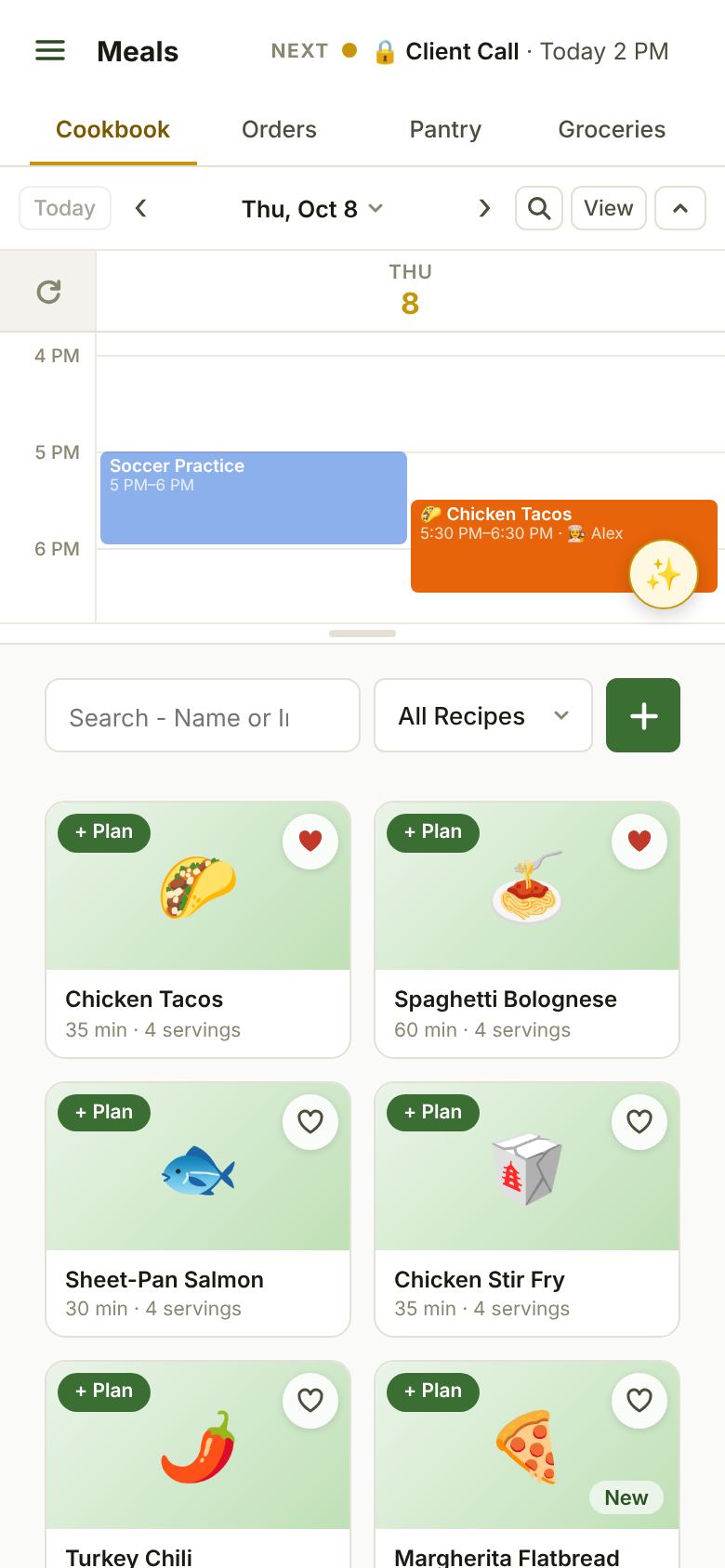
To move a dinner, drag it to another day or time (on a phone: press and hold it, then move it). Tap it to change the cook or remove it, or use − and + by Servings to cook more or less. A dinner makes the whole recipe; a recipe that serves fewer than your family is scaled up to fit. The grocery list and the pantry follow what you pick.
Cooking
Tap Cook on a recipe (or on tonight’s dinner on Home). One step at a time, in big type:
- Times in a step (“simmer 20 minutes”) become timer buttons. On iPhone the timer rings even if you leave the app. +1 on a running timer adds a minute; when time’s up, +1 Min gives it one more. A step that says “cook until soft” without a time gets an estimate, shown with a ~ (“~6 min”): a time to check, not a promise.
- Each ingredient’s amount shows in grey the first time a step names it (“add the broth (10 cups)”), for the servings you picked. A 💡 between Previous and Next means the step has a tip: tap it to read, tap anywhere else to close.
- Hands-Free (the microphone beside Sous Chef, in the iPhone app): each step is read aloud once (tap the step or the microphone to stop the reading; it keeps listening), and when a timer goes off it says so, and you can say next step, previous step, read it again, start the timer (or the second timer, the 8 minute timer), stop the timer, add a minute (also when a timer has just gone off), okay to put away a time’s-up card, or finish cooking, and ask how long is my timer?, what’s the next step?, what step am I on? or how much butter do I need? (answered from the recipe). Start any other question with Chef (“Chef, what can I use instead of buttermilk?”) and Sous Chef answers out loud; then you can say one of its buttons, like add it to the grocery list. Open chat shows the conversation; stop listening turns it off. It turns itself off when you finish cooking, leave the app, or after 15 quiet minutes. For a more natural voice, download one on your iPhone in Settings → Accessibility → Spoken Content → Voices (the ones marked Premium or Enhanced sound most like a person); AprèsSchool uses the best one you have.
- The screen stays on while you cook.
- Leave any time: a “Cooking” pill at the top brings you back.
- ✓ Finish Cooking on the last step takes the recipe’s ingredients out of your pantry.
After Dinner
Home’s On the Menu lists this week’s dinners. Mark each one Cooked or Skipped (on a phone you can swipe it right or left).
- Cooked takes its ingredients out of the pantry and asks how it was (😞 😐 😄). Plan the Menu learns from your ratings.
- Skipped leaves the pantry alone and takes its ingredients off the grocery list.
A dinner no one marks is never assumed made: it waits on Home for three days.
Plan the Menu and Mix It Up
Tap the round ✨ on the calendar, on Home and every Meals tab: it opens ✨ Plan the Menu and ✨ Mix It Up. On a folded calendar it sits just left of the Show arrow, and the calendar opens when you tap it. Home’s evenings with no dinner yet have a ✨ Plan the Menu button too.
✨ Plan the Menu Premium (your family’s first week plan is free) picks dinners for the week’s open evenings from your cookbook, your takeout orders and new ideas. It looks at who’s home, how busy each evening is and what your family likes. Drag the dot in the triangle toward more cookbook, more takeout or more new recipes (with no recipes or no takeout orders yet, that corner is grayed out until you add one), and tap the days to choose which evenings to plan (your usual ones, set in Settings → Meals, start on). A bar shows how planning is going. Then change any evening, and Approve. Each evening’s day, time and cook are underlined: tap the time to pick another (15 minutes apart), the cook to change who cooks, or the day to trade dinners with another evening. If the cook is out while dinner cooks, the evening says so. Swap (the crossed arrows) shows other choices as cards, the dinner planned now first, then the plan’s own ideas and your cookbook (a new recipe from the plan’s ideas is marked 1 meal: picking it finds its recipe, and uses one of your meals; your cookbook and orders are free); ✕ leaves an evening open (Undo brings it back); +📖 adds a new idea (✨) to your cookbook and ↗ opens its recipe. One Meal, at the top, does the same for just one evening.
✨ Mix It Up Premium swaps a dinner you’ve already planned for something fresh. Tap Mix It Up, then the dinner on the calendar (or ✨ Mix It Up on a planned dinner’s card), and choose Similar or Something New, and Quick if you’re short on time. You get three ideas, each with a real recipe and a colored dot for how much of it you already have: green, mostly what you have; gold, a few things to buy; red, most of it to buy. Plan It puts your pick in that evening, with the same cook. Mix It Up works on dinners this week and the next three, and each one is one of your meals.
Still Stuck?
Email [email protected] and we’ll get back to you. Or see all help articles.