👨👩👧 Family and Access
Everything in AprèsSchool belongs to a family: the calendar, the children, the cookbook, the grocery list. Here’s how to set your family up to fit how you live, invite the people who help, and choose what each of them sees.
Account → Profile → Help → Which Setup Is Right for Us?
Which Setup Is Right for Us?
New families are asked this when they first sign up. You can open it any time from Account → Profile → Help, or from Account → Settings → Family Privacy. Pick the setup that sounds most like yours: it shows what’s shared and what’s kept apart, then the steps, each with a button that does it. Picking one changes nothing by itself.
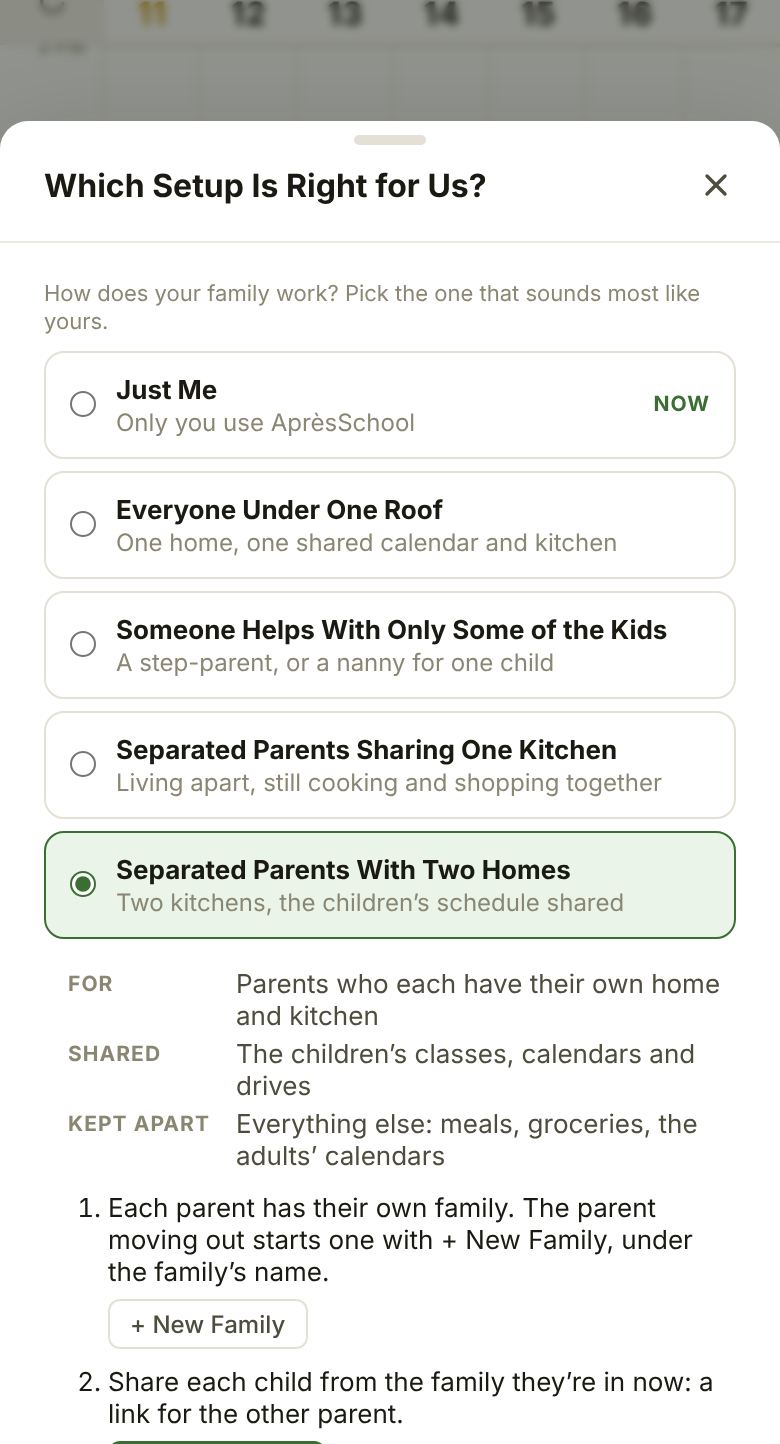
- Just Me: only you use AprèsSchool. You can still add the people who drive or cook in People, without them signing in, and plan their drives.
- Everyone Under One Roof: one home, and everyone who helps: parents, grandparents, a nanny, carpool drivers. Everything is shared, as far as each person’s Access allows.
- Someone Helps With Only Some of the Kids: a step-parent, or a nanny for one child. They’re in your family but see only the children you pick.
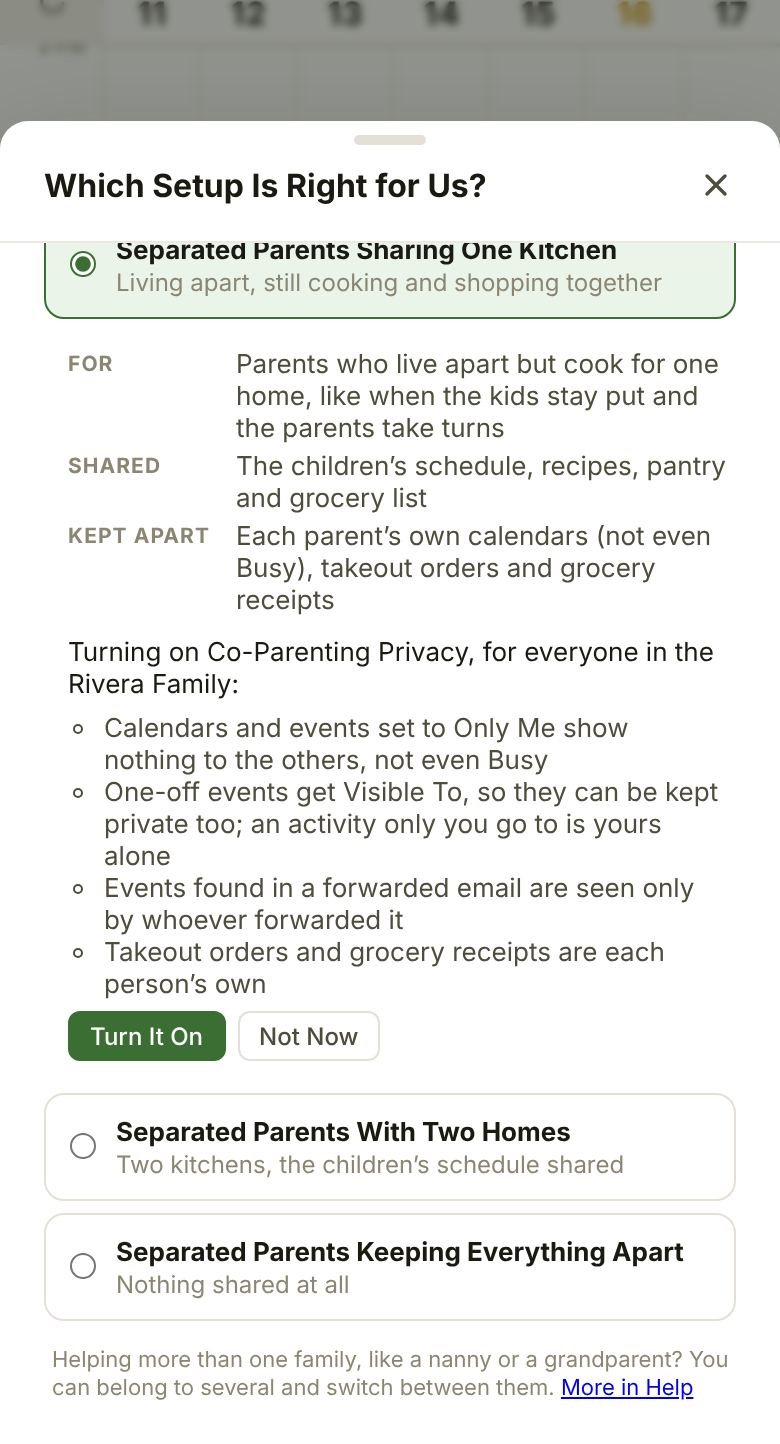
- Separated Parents Sharing One Kitchen: parents who live apart but cook for one home, like when the kids stay put and the parents take turns. Stay one family and turn on Co-Parenting Privacy.
- Separated Parents With Two Homes: each parent has their own family and kitchen, and the children’s classes, calendars and drives are shared between them.
- Separated Parents Keeping Everything Apart: nothing is shared. Each parent adds the children to their own family. This also fits split custody, when each parent raises different children.
Inviting People
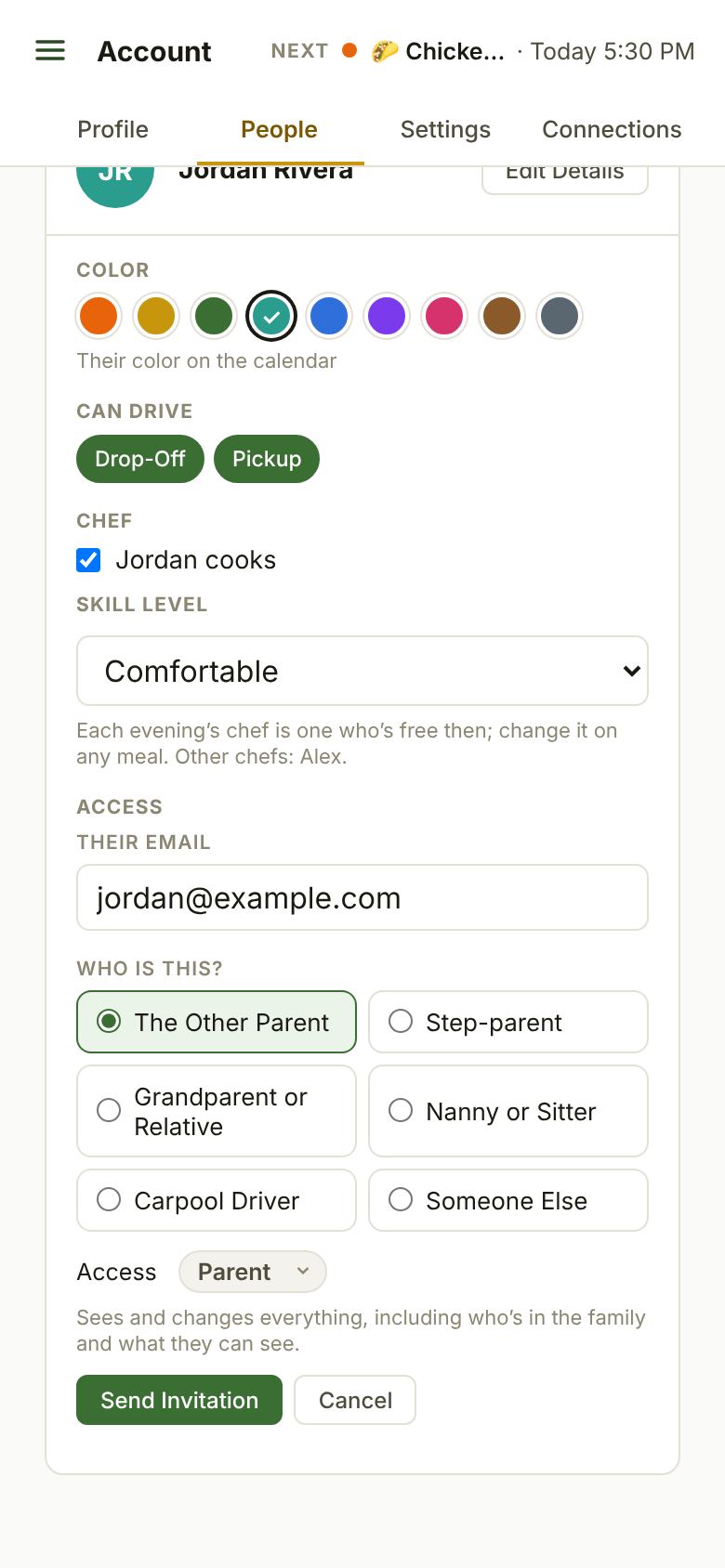
Add the person in Account → People: tap + next to the list, then Caregiver (in the iPhone app, From Contacts fills in their name and email), then open their card and tap Invite to AprèsSchool. Only a Parent can invite.
The invitation asks Who Is This? and suggests what they can do:
- The Other Parent: Parent
- Step-parent: Planner
- Grandparent or Relative: Helper. Tick They plan meals and classes too to make them a Planner.
- Nanny or Sitter: Helper
- Carpool Driver: Driver
- Someone Else: you pick
You can always change the suggestion under Access, before sending or any time after, on their card. They get an email with a link; once they open it and sign in, they’re in your family.
What Each Access Level Can Do
- Parent: sees and changes everything, including who’s in the family and what they can see.
- Planner: plans and changes the schedule, meals and groceries, but not who’s in the family.
- Helper: sees the family’s schedule, and takes drives and cooking.
- Driver: sees only the drives they’re given, on Home, with the time to leave.
- Viewer: sees the family’s schedule and changes nothing.
- Teen: a child’s own login (13 and up): sees the family’s schedule, takes drives and cooking, and adds to the grocery list.
The person who started the family is always a Parent.
Seeing Only Some of the Children
In a family with two or more children, anyone who isn’t a Parent has a Children line on their card, and on their invitation. Untick the children they shouldn’t see. Everything tied to a child follows: their classes, calendars, events and drives.
Co-Parenting Privacy
For separated parents who still share one family. Turn it on from the setup guide (it lists what changes first) or in Account → Settings → Family Privacy. Only a Parent can. When it’s on:
- Calendars and events set to Only Me show nothing to the others, not even Busy.
- One-off events get Visible To, so they can be kept private too.
- An activity only you go to (your yoga class) is seen only by you.
- Events found in a forwarded email are seen only by whoever forwarded it.
- Takeout orders and grocery receipts are each person’s own.
The children’s calendars, the cookbook, the pantry and the grocery list stay shared. If each parent has their own home and kitchen, two families with a shared child fit better.
Sharing a Child With Their Other Home
- Each parent needs their own family. A parent moving out starts one with + New Family (see below).
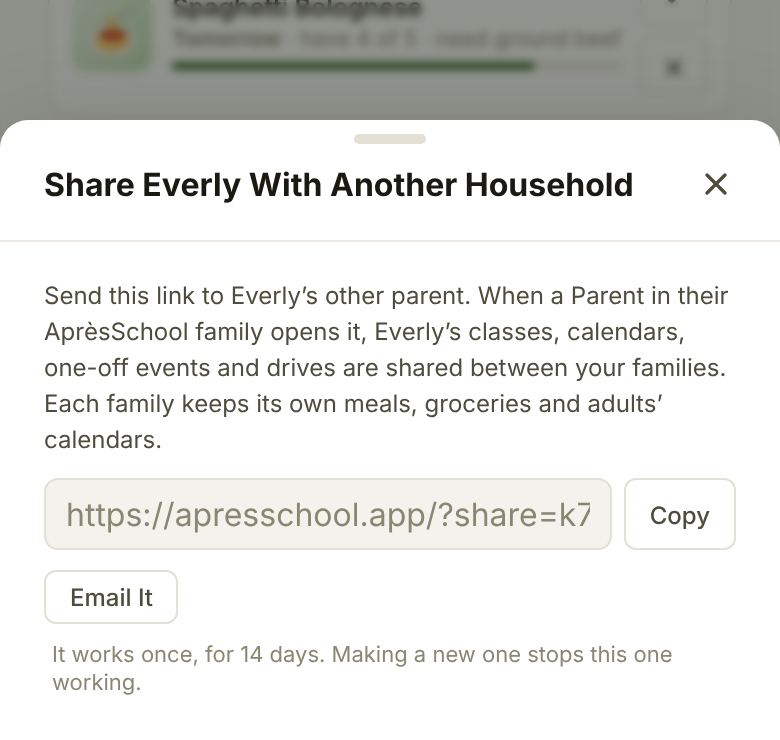
- In the family the child is in now, open the child’s card in Account → People and tap Share With Another Household. Send the link to the other parent: copy it or email it.
- A Parent in the other family opens the link and adds the child. If they’d already added the same child, they can combine the two.
From then on, both families see that child’s classes, calendars, one-off events and drives, by each person’s Access. Each family keeps its own meals, groceries and adults’ calendars. The other home’s adults can be picked to drive that child.
The next time each side’s Parent opens AprèsSchool, a note says the child is shared and what’s left to do, like sharing a brother or sister too.
Either family’s Parents can Stop Sharing from the child’s card. The other family keeps its own copy of the child, with what it entered.
Being in More Than One Family
- Joining: when someone invites you to their family, you’re asked to join when you sign in.
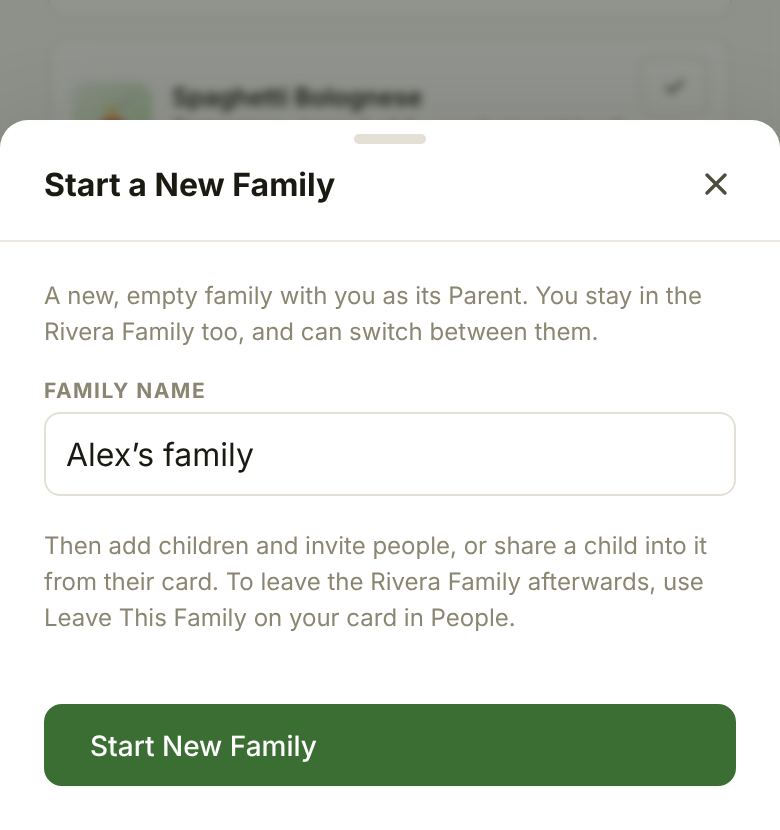
- Starting one: tap + New Family under your family’s name (on the Account page in the app, or in the sidebar on the website). You’re its Parent, and you stay in your other families.
- Switching: once you’re in more than one, pick the family under its name.
- Leaving: on your own card in Account → People, tap Leave This Family. It shows once you’re in two families, so you always have one.
Helping more than one family, like a nanny or a grandparent? Each family invites you, and you switch between them.
Private Calendars
Any calendar or one-off event can be Visible To: Family or Only Me. A calendar you add for yourself starts Only Me. Others see those times as Busy, with no titles or places, so drives and dinners still plan around you. With Co-Parenting Privacy on, they don’t see even that. More in Importing Calendars.
Still Stuck?
Email [email protected] and we’ll get back to you. Or see all help articles.